



Voice commands
Say it,
and it opens.
Tap Ctrl + NumPad 5, say a phrase, tap again — or hold the key and let go. A folder opens, or a program, a website, a web search, or one of Lickety’s own screens. The words are matched on your own PC, the action runs, and nothing is typed.
Built in, with nothing to set up
Dictation and commands sit side by side in one program, each on its own key, so there is no mode to remember. A fresh install already answers to the things most people want most of the day.
- open Word
- Word opens — and so does any other app on your Start Menu
- open downloads
- your Downloads folder, in Explorer
- search for pickleball paddles
- that search, in your browser
- create a note
- a blank note, cursor already in the title
- what can I say?
- the list of everything it currently answers to
Your own commands, in your own words
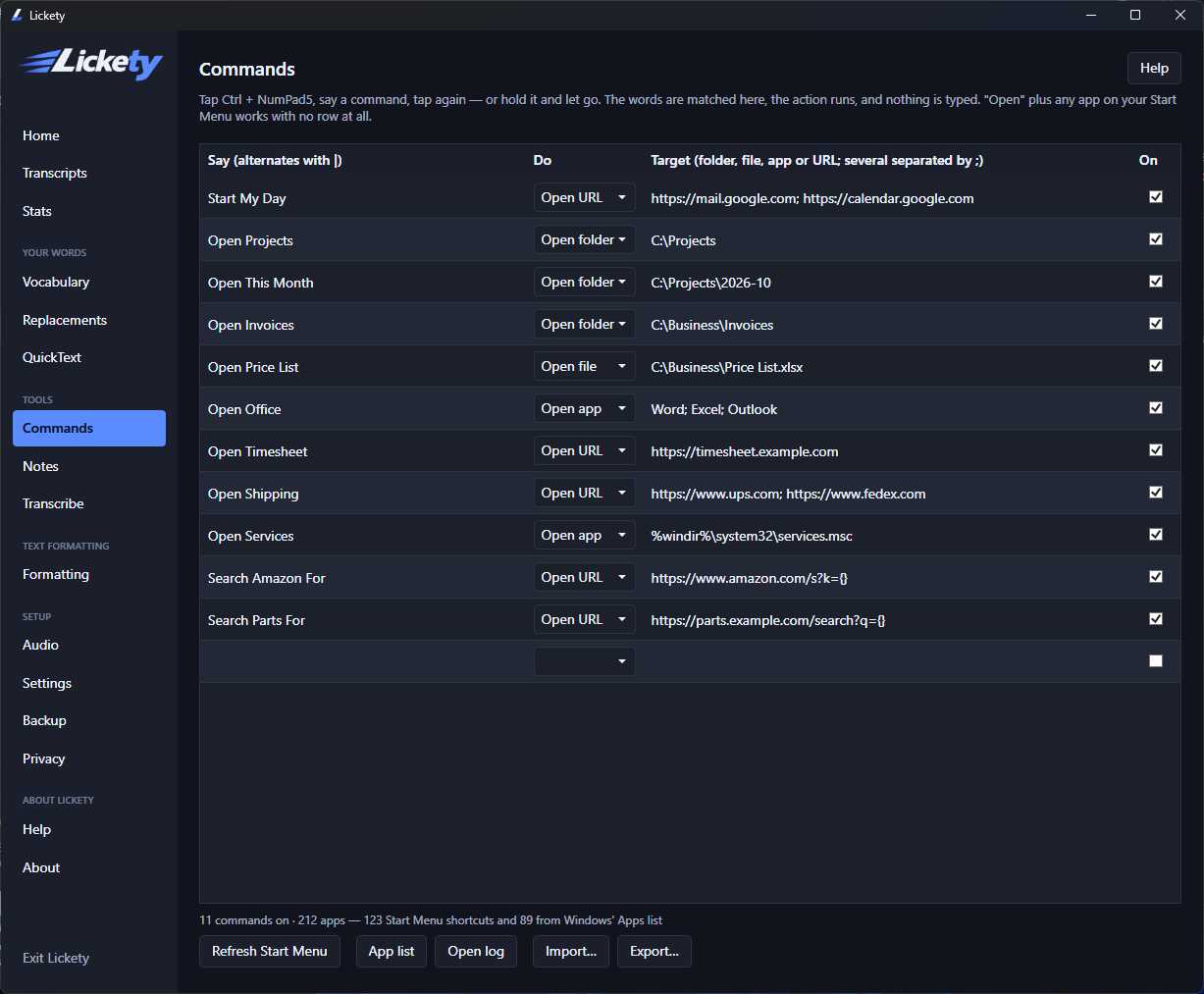
Add a row for the folder, file, site or program you open ten times a day, and call it whatever you actually call it. A row can hold several targets separated by a semicolon, so one phrase can open a whole morning’s worth of windows at once.
A row can also take what you say next. Set up search Amazon for once, with {} marking where the words go, and from then on the rest of the sentence is the search.
- start my day
- mail and calendar, both, in two tabs
- open this month
- C:\Projects\2026-10
- search Amazon for USB cables
- that search, on Amazon
Private, offline, Windows 10 and 11
Commands are recognised on your own machine, exactly as dictation is. Nothing you say is sent anywhere, there is no account, and it all works with the internet off. Windows 10 and Windows 11 behave the same.
What it will not do
It will not click a button inside another program, or walk through that program’s menus for you. That is a different job, and Windows 11 already has a serious tool for it: Voice Access, under Accessibility, which can click by name, scroll, and put a numbered grid on the screen. If you need to run your whole computer without your hands, use that. Lickety works alongside it.
Lickety’s commands do a narrower job: the things you open, find and search all day long, said once and done.
Next to what Windows already gives you
Checked in October 2026. Microsoft changes these features, so check again if it matters to your decision.
| Opens folders, apps, sites | Your own commands | Clicks buttons in other apps | Works offline | Windows 10 | |
|---|---|---|---|---|---|
| Lickety | Yes | Yes, including fill-in ones | No | Yes | Yes |
| Windows voice typing (Win+H) | No, it types | No | No | No | Yes |
| Voice Access | Yes | Limited | Yes | Yes | No |
| Windows Speech Recognition | Some | Limited | Yes | Yes | Yes — removed from 11 |
Two cells are judgement calls rather than measurements. Voice Access and Windows Speech Recognition both have some custom commands, but neither does phrase-to-folder or phrase-to-site the way this does.
Questions
Do I need to turn on accessibility features in Windows?
No. Commands are part of Lickety. There is nothing to switch on in Windows and no accessibility mode to enter.
Does it work offline?
Yes. Commands are recognised on your own PC, the same way dictation is. Nothing is sent anywhere and no internet connection is needed.
Can it click buttons inside other programs?
No. Lickety opens things; it does not drive another program’s menus or click its buttons. If you need to run the whole computer by voice, use Voice Access on Windows 11 — it is the right tool for that, and Lickety works alongside it.
Do I have to add a row for every program?
No. “Open” plus the name of any app on your Start Menu works with no row at all. Rows are for the folders, files, sites and searches you want in your own words.
Lickety — $79, once
Windows 10 & 11. No account, no upload, nothing renews.