



Notes
Notes you can
just say.
Press Ctrl + Shift + N, or just say “create a note”, and dictate into a note instead of into another window. No document to create, no file to name, nothing to save somewhere sensible and then fail to find.
A note is just a dictation you decided to keep
That is the whole design. Everything Lickety does to your words — vocabulary, replacements, QuickText, numbers, dates, lists, punctuation — happens here the same way, because there is no separate “notes mode” doing a simpler job.
- claim four four seven one dash zero two eight eight two
- Claim 4471-02882
- joists at sixteen inches on centre, forty two boards at twelve feet
- Joists at 16 inches on centre. 42 boards at 12 feet.
- insert QuickText of my address
- your three-line address, inside the note
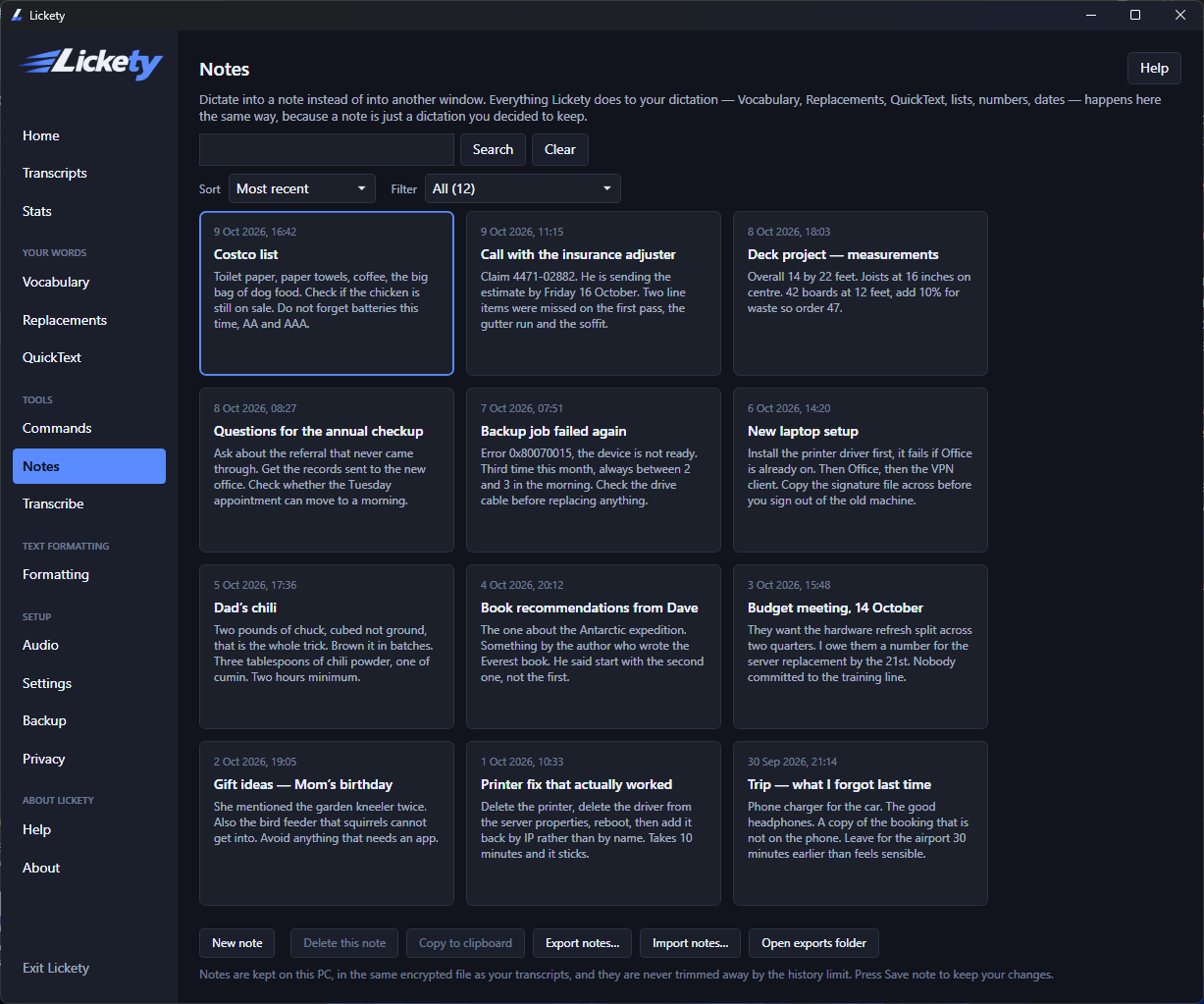
Categories, sort and search
Give a note a category and the filter counts them for you. Sort by most recent, by title or by category. Search runs over the title, the text and the category at once: type, press Enter, and the Search button counts the matches and walks you through them.
Merge two notes into one
Half a thought on Tuesday and the rest of it on Friday is the normal way notes happen. Right-click the stray one, pick the note it belongs to, and it is appended two lines below the last thing you wrote there. The destination keeps its own title and category, and the original is removed only once the merge has actually been saved.
Export and print
One note or a whole selection, as Markdown, a Word document, a PDF or CSV. The first three are laid out to be read — the title as a heading, the date and category beneath it, the body line for line — and CSV is the raw data for a spreadsheet, quoted properly so a note with commas and line breaks in it does not shred into extra rows. You can print a note straight from the same menu, and the exports folder is remembered and openable from a button.
Kept on your PC, and never trimmed
Notes live in the same encrypted file as your transcripts, on your own machine. There is no account and nothing syncs. The history limit that trims old transcripts does not touch notes: a transcript scrolls away by design, and a note was kept on purpose.
Questions
Where are my notes stored?
On your own PC, in the same encrypted file as your transcripts. There is no account and no sync, so a note goes nowhere until you export it.
Do old notes get deleted when the history limit is reached?
No. The history limit trims transcripts, which scroll away by design. A note was kept on purpose, so it is never trimmed.
What can I export to?
A single note or a whole selection goes out as Markdown, a Word document, a PDF or CSV. Markdown, Word and PDF are laid out to be read; CSV is the raw data for a spreadsheet. You can also print a note.
Does dictation work the same inside a note?
Yes. Vocabulary, replacements, QuickText, numbers, dates, lists and punctuation all behave exactly as they do anywhere else, because a note is just a dictation you decided to keep.
Lickety — $79, once
Windows 10 & 11. No account, no upload, nothing renews.